Preparing your environment
Before you open Tor Browser for the first time, the setup matters. Vortex runs on .onion — inaccessible through Chrome or Firefox. It lives on the Tor network, where .onion addresses resolve to actual hidden servers. Getting this right once eliminates most first-time problems. And it's simpler than it sounds.
Getting and verifying Tor Browser
Download Tor Browser exclusively from torproject.org. Not from third-party mirrors, not from search results, and not from sites that promise a "pre-configured" version. The official site includes a cryptographic signature for every release.
Verifying the signature takes two minutes. It confirms the file wasn't altered in transit. On Linux or macOS: import the Tor Project signing key (gpg --import tor.asc), then run gpg --verify tor-browser-linux64-*_ALL.tar.xz.asc. A "Good signature" message means you're clear. On Windows, Tor Browser's installer includes an embedded signature check — run the installer and watch for the security confirmation.
Tor Browser is available for Windows, macOS, Linux, and Android. The desktop version is the most established. Use it on a dedicated browsing session — don't mix your regular browsing activity and Tor sessions in the same window.
Even if you're comfortable with Tor, set Security Level to Safest before accessing Vortex — not Standard. The Safest setting disables JavaScript platform-wide, which closes several known deanonymization vectors. Vortex functions correctly at this level. Don't make exceptions.
Security settings that matter
Click the shield icon in the toolbar. Set the Security Level to Safest. This disables JavaScript, certain fonts, and some media types. That sounds severe. But Vortex works at Safest level — the platform was built to function without JavaScript execution, as most serious darknet marketplaces are.
What Safest blocks: JavaScript on all sites, SVG filters, MathML, and certain browser APIs. For Vortex specifically, you don't need to whitelist anything. The marketplace renders and functions fully at maximum security. The login form, product listings, messaging, and checkout all work without JS.
Setting Safest also reduces your attack surface against malicious JavaScript that could attempt to fingerprint your browser, leak your timezone, or trigger unexpected network requests. It's not paranoia — these attacks happen. The setting costs you nothing on Vortex.
Optional: Tails OS or Whonix
If you're in a jurisdiction where accessing darknet markets carries serious legal risk, consider a more isolated operating environment. Both options below route all traffic through Tor automatically.
Tails OS is a live operating system you boot from a USB drive. It leaves no trace on the host computer after shutdown — no browser history, no downloaded files, nothing. Every session starts clean. The documentation is thorough and actively maintained. Tails is widely regarded as the most accessible high-security option for darknet browsing.
Whonix takes a different architectural approach: two virtual machines, where the workstation VM has no direct internet access and must route all connections through the gateway VM running Tor. This separation means even a fully compromised application can't discover your real IP address. Download from whonix.org.
Neither is required for standard Vortex access. Most users run Tor Browser on their primary OS without incident. But if your threat model includes anything beyond casual use, understanding these options is worth 20 minutes of reading.
What you'll need
- Tor Browser — from torproject.org, verified signature
- A Monero wallet — Feather Wallet (desktop) or Cake Wallet (mobile)
- GnuPG — for PGP key generation and vendor communication
- About 30 minutes for initial setup
Reaching Vortex
With Tor Browser installed and configured, you're ready to reach Vortex. This phase has one rule that prevents most first-time mistakes — and one thing to check when you arrive.
Vortex's phishing clones are visually identical to the real platform — same purple-and-cyan palette, same typography, same layout. The .onion address is the only reliable distinguisher. Verify every character before entering credentials. Wrong address = wrong server, and phishing servers log everything.
Copy the link — never type it
.onion addresses are 56 characters of random-looking text. bar47oi7dym5soxvaehmd2lt7jjw3gdoxekynyflx3jc5qfarsfyz2id.onion — count those characters. One wrong character routes you to a completely different server, potentially a phishing site built to capture credentials.
The phishing playbook for darknet markets is simple: register a visually similar .onion domain, clone the platform's interface, and wait for mistyped traffic. Vortex's distinctive purple and cyan design is trivial to copy. The .onion address is not — which is why verifying it matters so much.
Use the Copy button in the sidebar or on the homepage. Paste directly into the Tor Browser address bar. Don't read it aloud and type it letter by letter. Don't search for Vortex on Google or Bing — search results don't guarantee you reach the real platform. Copy from here, paste into Tor. Done.
What the Vortex interface looks like
The login screen has a deep navy background with a prominent purple-accented logo and cyan interaction highlights. You'll see fields for username and password, a 2FA code input if you've set it up, and a registration link.

If the page you land on doesn't match this description — if the design looks noticeably different, if the fonts are wrong, if the color palette shifts toward blue or gray rather than purple-cyan — close the tab. You may have landed on a phishing clone. Return here, copy the address fresh, and try again.
Slow load times are normal
Tor routes every request through three encrypted relays before reaching the destination. A page load that takes 3-6 seconds is normal. 8-12 seconds is slow but not unusual during peak hours or when the Tor network is congested.
If a mirror takes longer than 20 seconds to respond, or returns a connection error, try a different one. Vortex maintains three verified .onion addresses — all run the same platform. Switching mirrors costs nothing. Keep all three saved. The Entry Nodes page lists all current addresses with status indicators.
Creating your account
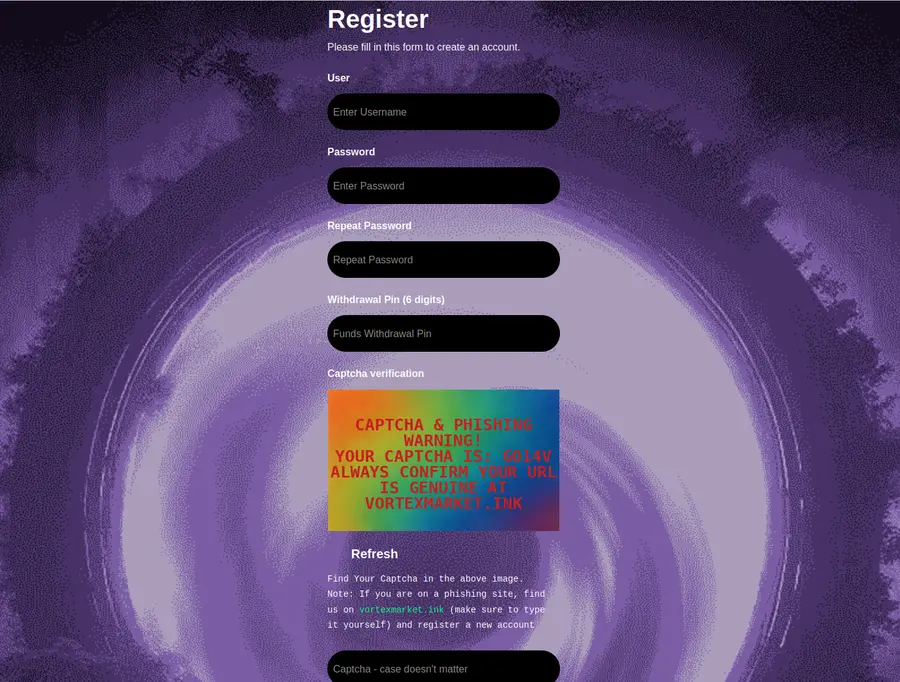
Registration on Vortex requires a username and password only. No email address. No phone number. No identity verification. The platform stores no personally identifiable data by design.
Choose a username with no connection to any other online identity — no variations of your email address, no names you use elsewhere. Use a strong, unique password. KeePassXC handles password storage and generation without cloud sync. You can add a PGP public key during registration or return to account settings afterward — adding it later is fine.
Setting up security
This phase is optional but strongly recommended. PGP and 2FA protect your account from unauthorized access and keep your communications with vendors private. Setup takes about 15 minutes total.
Generating a PGP key pair
PGP (Pretty Good Privacy) generates two mathematically linked keys: a public key you share openly, and a private key that stays only on your device. Anyone can encrypt a message using your public key. Only you can decrypt it with the private key.
Generate a key pair using GnuPG:
# Generate a new key pair (follow prompts: RSA, 3072 or 4096 bits)
gpg --gen-key

# Export your public key in ASCII format
gpg --armor --export YOUR-EMAIL-OR-KEY-ID > vortex-public.asc

# Verify the export looks correct
cat vortex-public.asc
The --armor flag formats the key as ASCII text you can paste into a web form. The resulting .asc file is your public key — this is what you upload to Vortex. Your private key (stored in GnuPG's keyring) never goes anywhere external.
For a graphical interface, Kleopatra (Windows/Linux) or GPG Suite (macOS) handle key generation with fewer command-line steps. Both export to .asc format.
Don't upload your PGP private key anywhere. Ever. Only the public key (.asc file, starting with -----BEGIN PGP PUBLIC KEY BLOCK-----) goes to Vortex. The private key stays on your device. If you upload the private key, treat your account as compromised.
Uploading your PGP key to Vortex
After logging in, navigate to Account Settings → Security. There's a field labeled PGP Public Key. Open your vortex-public.asc file, copy the entire content — from -----BEGIN PGP PUBLIC KEY BLOCK----- through -----END PGP PUBLIC KEY BLOCK-----, including both header lines — and paste it into the field. Save.
Once saved, Vortex displays your key fingerprint next to your account. Vendors who use PGP will encrypt order confirmations and communications specifically to your public key. Only your private key can decrypt those messages — even Vortex platform administrators can't read them.
Enabling 2FA
Two-factor authentication adds a time-based one-time password (TOTP) as a second login requirement. The code changes every 30 seconds and is generated on your device — not sent via SMS, not stored by Vortex.
Use Aegis Authenticator on Android (open-source, supports encrypted backup exports) or a standard authenticator app on iOS. During 2FA setup, Vortex shows a QR code. Scan it with your authenticator app. It's registered.
Write down the backup codes Vortex provides. Physical paper, stored somewhere offline. If your phone is lost and you have no backup codes, account recovery depends entirely on whether you have access to the recovery phrase Vortex may have issued during setup. Don't discover this problem when you need the account.
Funding your account with Monero
Monero (XMR) is the recommended payment method on Vortex. Unlike Bitcoin, Monero transactions are private by default — amounts, sender addresses, and receiver addresses are all obfuscated at the protocol level. This isn't optional privacy — it's how every XMR transaction works.
Download Feather Wallet from featherwallet.org for desktop, or use Cake Wallet on mobile. Create a new wallet and record the seed phrase offline. Fund it from an exchange that supports XMR withdrawal to a personal address — withdraw to your wallet, not to an exchange custody address.
Vortex's built-in exchange lets you convert from BTC or USDT (TRC20) to XMR inside the platform, at real-time rates, without leaving Tor. That's the platform's defining feature. But starting with XMR directly is cleaner: fewer transaction steps, fewer exchange logs. Both approaches work.
Your first transaction
You're in, you're secured, and your account has funds. Here's how to approach the first order without the mistakes that most new buyers make in their first week.
Browsing listings safely
Sort by vendor rating and filter by minimum order count. A vendor with 4.8 stars across 347 completed orders is meaningfully different from a vendor with 4.8 stars across 4 orders. Volume matters as much as the score.
New vendors — under 50 completed orders — carry higher uncertainty. That doesn't mean avoid them entirely, but for your first purchase, choose a vendor with at least 100-200 completed transactions and recent positive reviews. Read the reviews specifically, not just the aggregate score. Patterns in recent negative feedback signal more than an isolated complaint from six months ago.
Check the vendor's profile for their PGP key fingerprint and how long they've been registered on Vortex. Long-standing vendors with consistent review patterns are lower risk. It's not complicated — just take five minutes before placing an order.
Understanding Vortex escrow
Standard Vortex orders use 14-day 2-of-3 multisig escrow. Three parties each hold one cryptographic key: you (the buyer), the vendor, and Vortex. Releasing funds requires two of the three keys — no single party can move the money unilaterally.
In practice: funds lock when you place an order. If the order arrives and you're satisfied, you finalize — triggering the release, which requires two confirmations. If you do nothing within 14 days after the estimated delivery, funds release automatically to the vendor. If something went wrong, open a dispute before that window closes.
Finalize Early (FE) means the vendor receives payment immediately, before delivery confirmation. FE status is earned — vendors who accumulate substantial verified order history can apply for it. Don't use FE for your first order, or for any vendor you haven't transacted with before. FE transfers the risk entirely to you. Standard escrow exists specifically to protect buyers.

Vortex's built-in exchange solves a problem unique to this platform. If you fund with BTC and want to convert to XMR before purchasing — or switch between BTC and USDT during the escrow period — you can do it entirely within the Tor session. No external exchange, no additional wallet, no IP exposure from leaving the platform.
Communicating with vendors
All messages containing shipping or delivery details should be PGP-encrypted. This is especially important for anything that could connect your order to a physical location or identity.
How it works: each vendor's profile page shows their public PGP key. Use GnuPG to encrypt your message to that key before submitting. The vendor decrypts it on their end. Neither Vortex platform staff nor anyone intercepting the transmission can read an encrypted message — mathematical encryption, not a privacy policy, is what protects it.
Keep messages to what the vendor needs: your order ID and any relevant delivery details. Nothing personal. No real name in a message body that doesn't need one. Encrypt with the vendor's key. Send. That's it.
After the order: the dispute process
If an order doesn't arrive within the expected window, don't finalize. Open a dispute through the order page before the 14-day escrow window closes. Once you finalize, the transaction is complete — disputes can only be opened while escrow is active.
When you file a dispute, Vortex moderators review the full order history, the vendor's track record on the platform, delivery window for the listed item, and any evidence you can provide — messages, tracking information, photos if relevant. The process typically resolves within 3-7 business days.
Outcomes include fund release to the buyer, release to the vendor, or a negotiated split depending on the evidence. Vendors who accumulate multiple unresolved disputes lose standing on the platform. The system has teeth — but only if you use it correctly. Open the dispute before the window closes.
What comes next
You've covered the full first-time access flow. Two pages go deeper on specific topics:
- Entry Nodes — all 3 verified Vortex .onion addresses with status indicators and copy buttons
- The Platform — Vortex's built-in exchange, USDT support, and feature architecture in depth
- Privacy Guides — independent resource for privacy tools and threat modeling
- EFF — legal and rights context for privacy-focused browsing